Token enterprise deployment

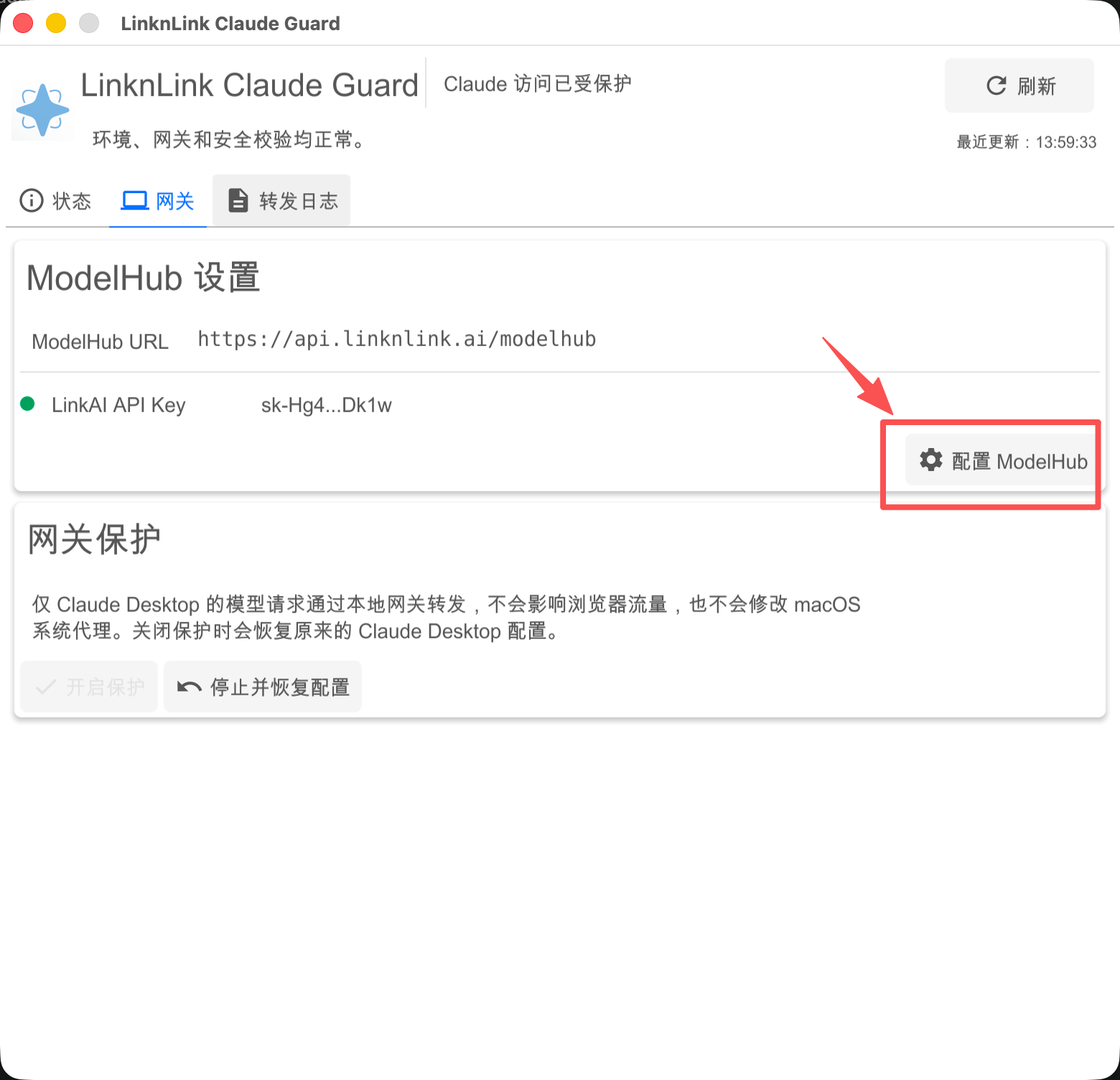
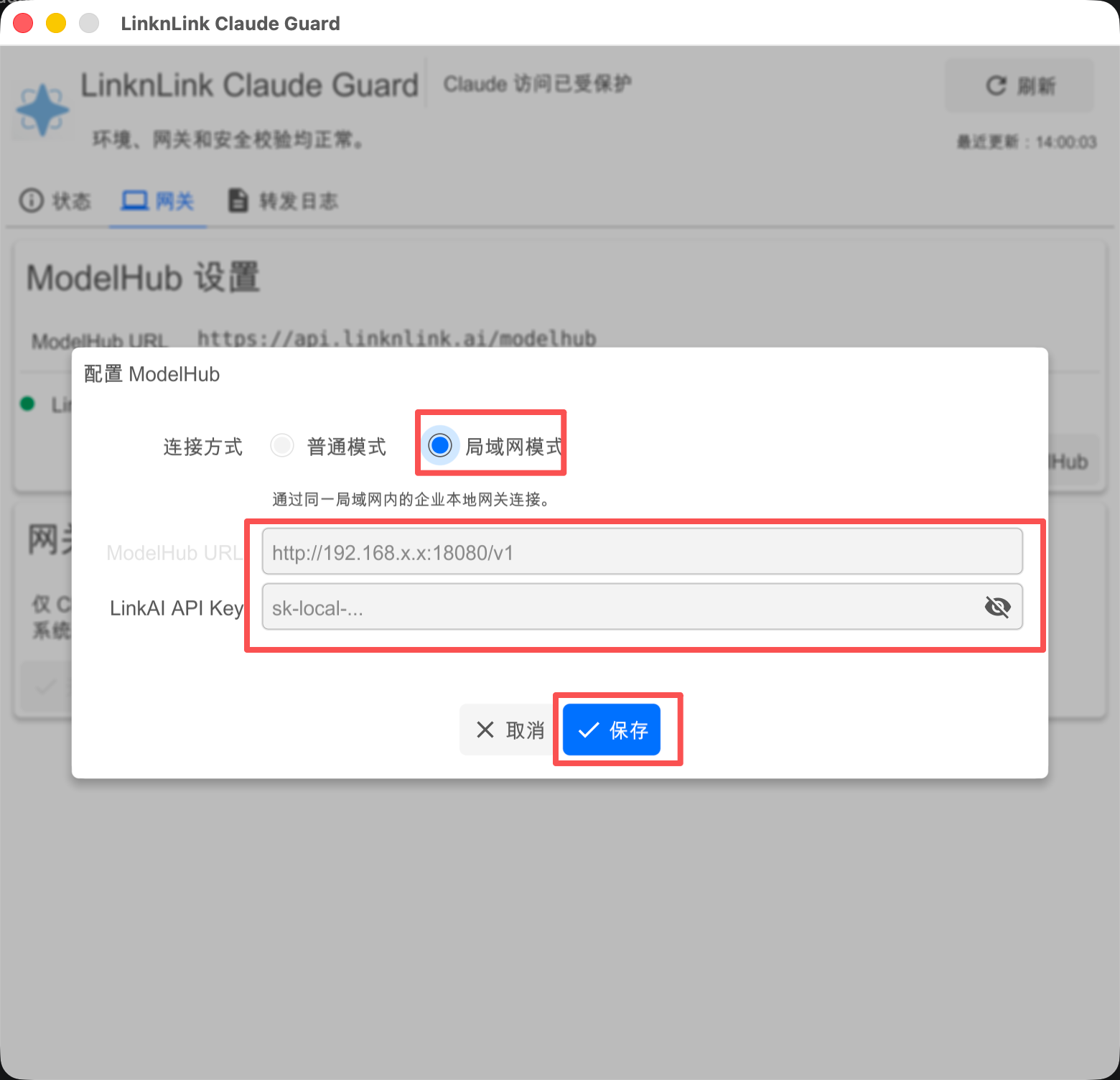
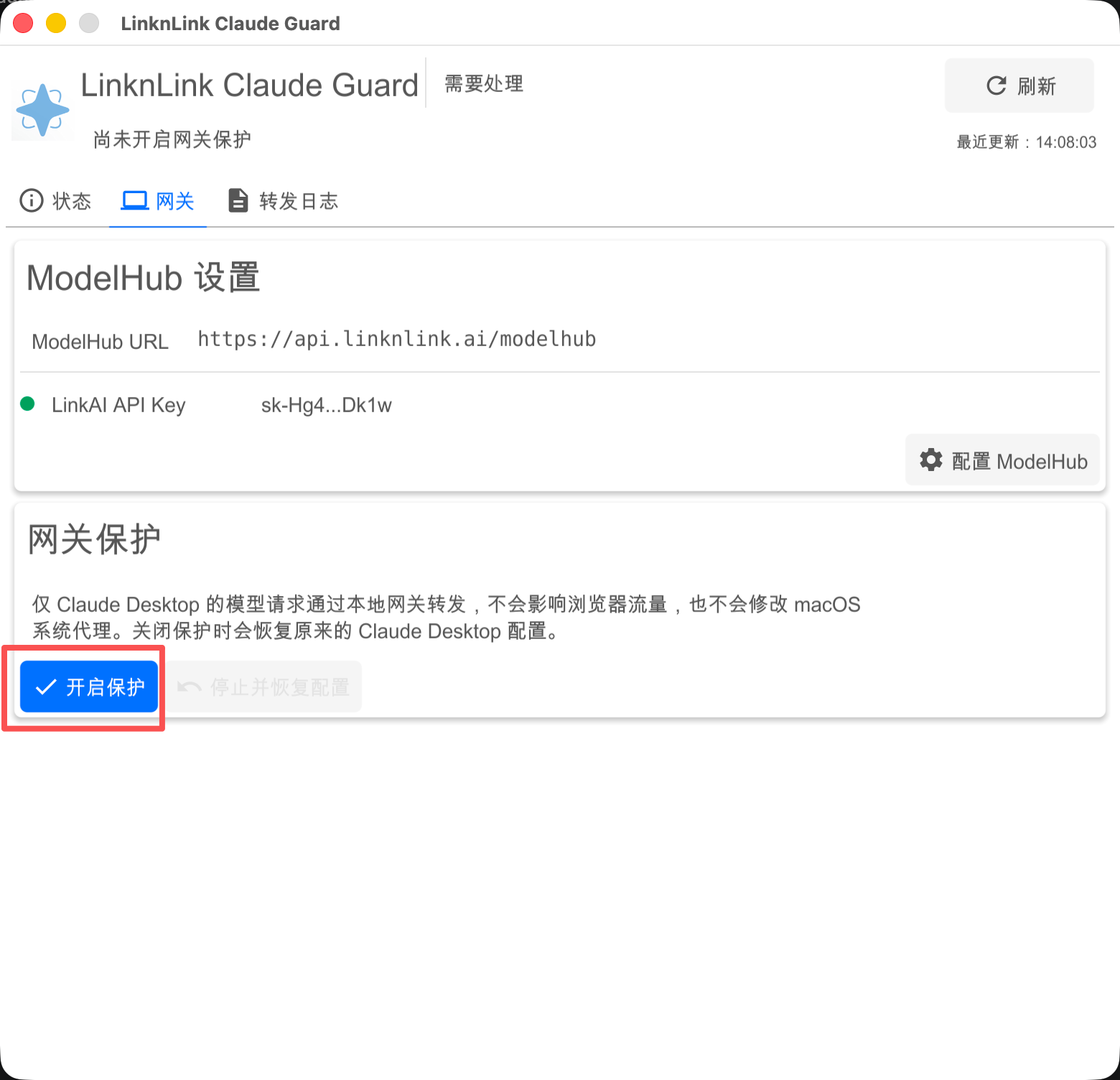
Install the enterprise local gateway first, then help employees connect Codex or Claude Code to the LAN gateway.
Tool
System

Enterprise gateway installation

The administrator deploys the gateway on a Linux PC, connects it to LinkAI ModelHub, then gives employees the LAN gateway base_url and LinkAI Local API Keys.

1

Prepare an enterprise Linux PC

Choose one Linux PC as the enterprise local gateway. Employee computers and this Linux PC must stay on the same LAN, and the Linux PC needs outbound access to LinkAI ModelHub.

  • Employee access address: http://linux-ip:18080/v1
  • Upstream ModelHub address: https://api.linknlink.ai/modelhub/v1
  • Recommended: use a fixed LAN IP for this Linux PC
Find the LAN IP
hostname -I
2

Download the installation package

If you are not sure which package to use, first check your Linux distribution and architecture. Debian or Ubuntu uses DEB; RHEL, CentOS, Rocky Linux, or compatible systems use RPM. x86_64 or amd64 uses x86; aarch64 or arm64 uses arm64.

Check architecture
uname -m

Debian / Ubuntu · DEB

x86 / amd64 DEB
wget -O apiproxy_latest_amd64.deb https://oss.linknlink.vip/homeclaw/apiproxy_latest_amd64.deb
arm64 DEB
wget -O apiproxy_latest_arm64.deb https://oss.linknlink.vip/homeclaw/apiproxy_latest_arm64.deb

RHEL / CentOS / Rocky Linux · RPM

x86_64 RPM
wget -O apiproxy-latest.x86_64.rpm https://oss.linknlink.vip/homeclaw/apiproxy-latest.x86_64.rpm
arm64 / aarch64 RPM
wget -O apiproxy-latest.aarch64.rpm https://oss.linknlink.vip/homeclaw/apiproxy-latest.aarch64.rpm
3

Install and start the gateway service

Choose the commands that match your package format. For arm64, replace the package filename in the first command with the arm64 or aarch64 filename you downloaded.

Debian / Ubuntu
sudo dpkg -i apiproxy_latest_amd64.deb
sudo systemctl daemon-reload
sudo systemctl restart apiproxy
sudo systemctl enable apiproxy
sudo systemctl status apiproxy --no-pager
RHEL-compatible systems
sudo rpm -Uvh apiproxy-latest.x86_64.rpm
sudo systemctl daemon-reload
sudo systemctl restart apiproxy
sudo systemctl enable apiproxy
sudo systemctl status apiproxy --no-pager

If the status is active, the gateway service is running. Keep this Linux PC powered on while employees use the local gateway.

4

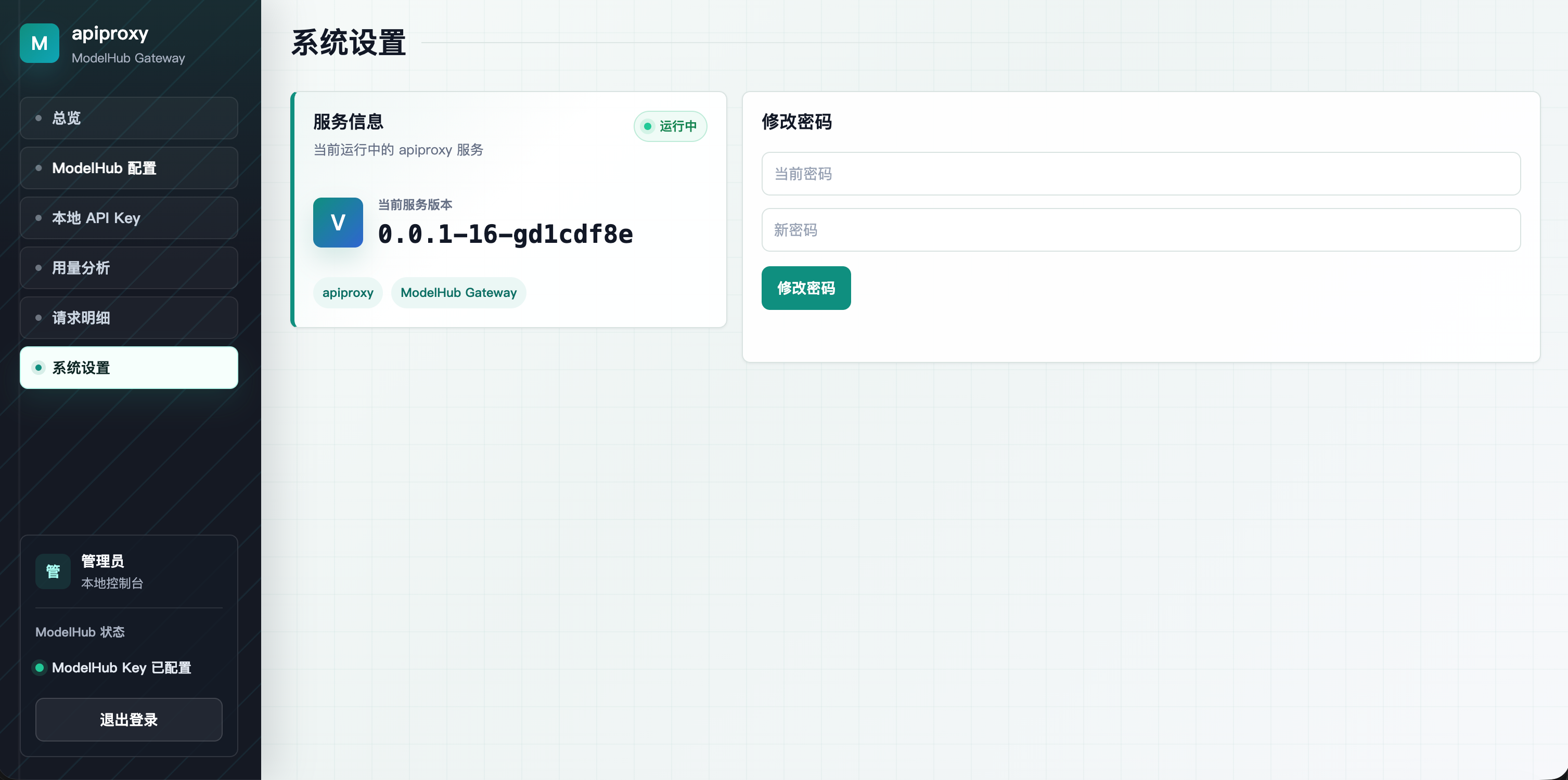
Open the admin console and change the password

Open the gateway console in a browser, usually http://linux-ip:18080. Sign in with the initial username admin and password admin, then change the administrator password and keep the new password in a safe place.

Change administrator password screenshot
Figure 1 Change administrator password
5

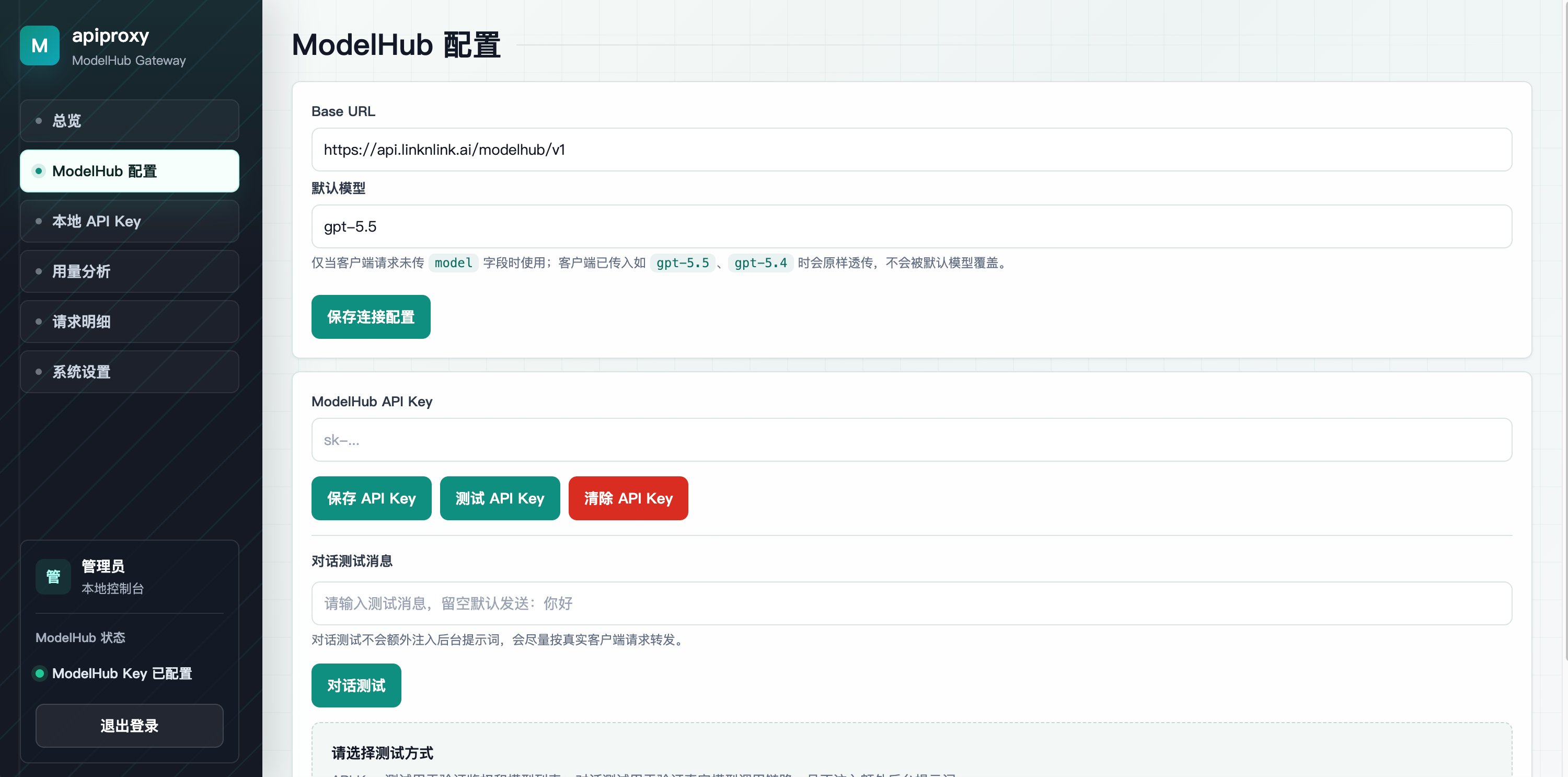
Configure LinkAI ModelHub

In the gateway console, fill in the upstream LinkAI ModelHub API Key, Base URL, and default model. The LinkAI API Key comes from the LinkAI platform and is the main key used by the gateway to call ModelHub. This upstream key stays on the Linux PC and does not need to be given to employees.

If you do not have a LinkAI API Key yet, sign in to LinknLink AI, create an API Key, and copy the value that starts with sk-. If you already have a valid LinkAI API Key, you can use it directly.

Get API Key

Base URLhttps://api.linknlink.ai/modelhub/v1
Default modelgpt-5.6-sol
Upstream keyLinkAI API Key
ModelHub configuration screenshot
Figure 2 ModelHub configuration
6

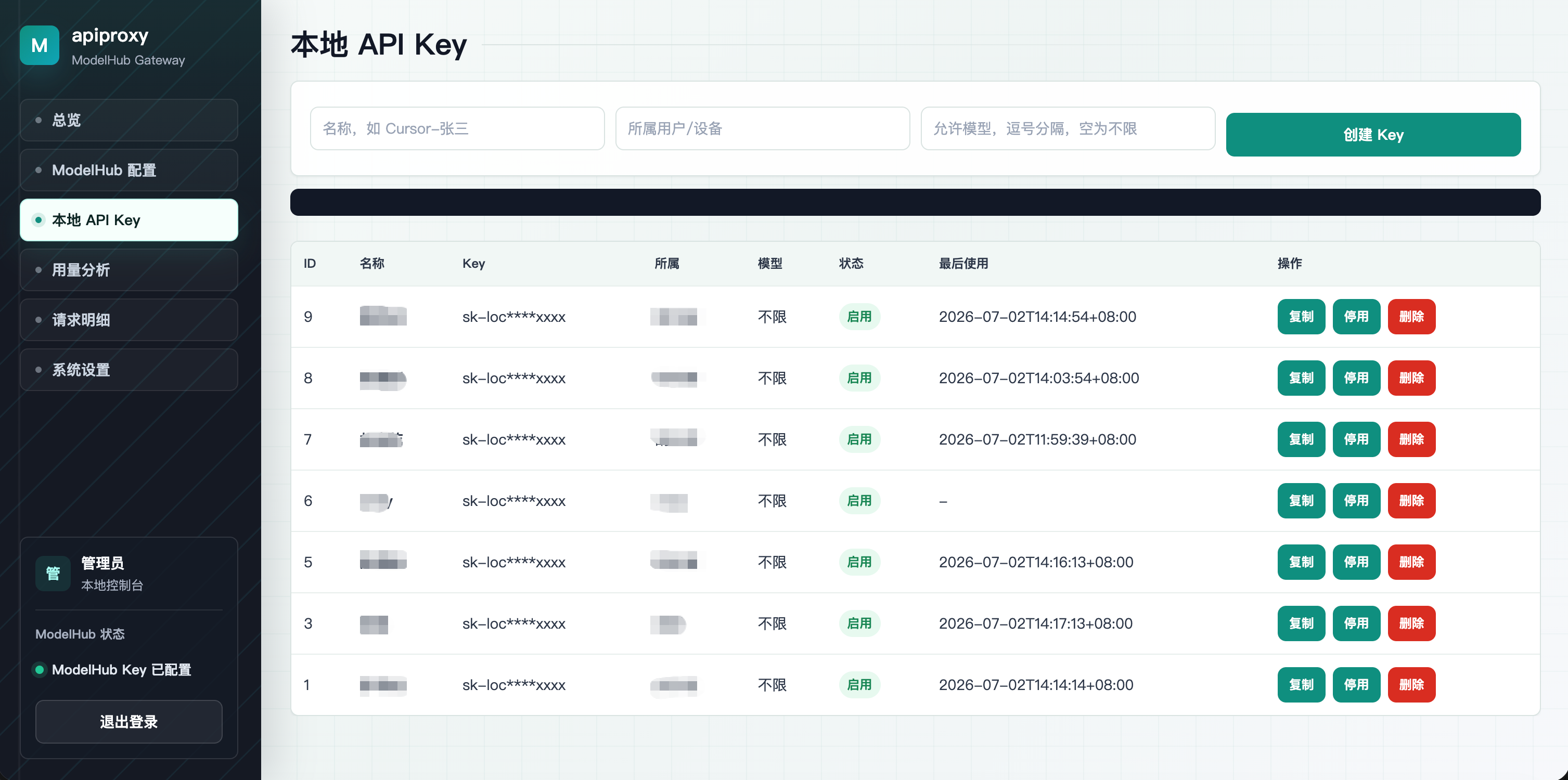
Create employee keys on the Local API Key page

Open Local API Key in the gateway console. Enter a clear name such as Cursor-Zhang San, fill in the owner user or device, and leave allowed models empty if you do not need to restrict models. Click Create Key, then copy the generated sk-loc key for the employee.

Key nameCursor-Zhang San
Allowed modelsEmpty means unlimited
Give employeessk-loc... and http://linux-ip:18080/v1
Create Local API Keys screenshot
Figure 3 Create Local API Keys

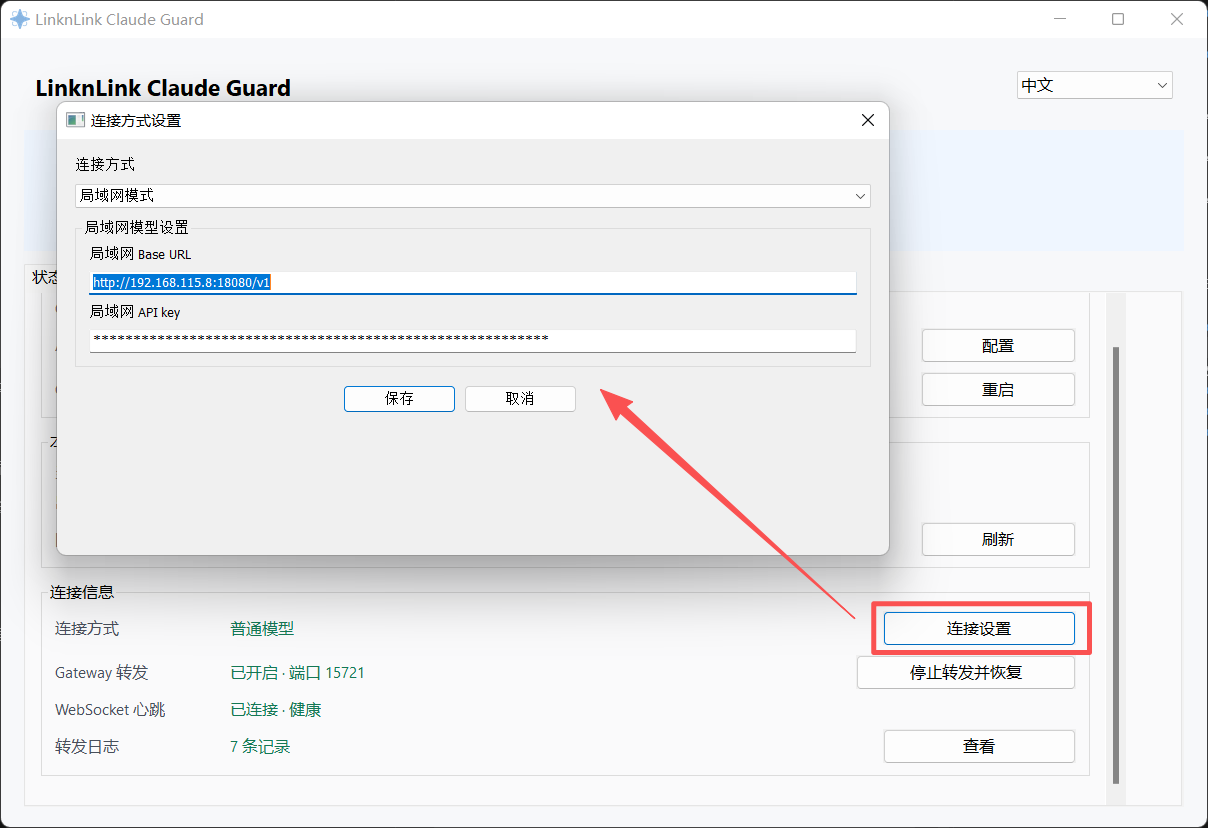
Finally, give employees only two pieces of information: the local sk-loc key and the LAN base_url, for example http://linux-ip:18080/v1. Do not distribute the upstream LinkAI API Key configured on the Linux gateway PC.